 Productivity Tip Productivity Tip
When setting up a client record, the record needs a minimum of a telephone number, a physical address and a postal address - otherwise you can't use the functionality of the system to any great degree. A few seconds work at the start means lots of time savings over the lifetime of dealing with the client.
|
There are two methods of creating a letter to a client via Microsoft Word.
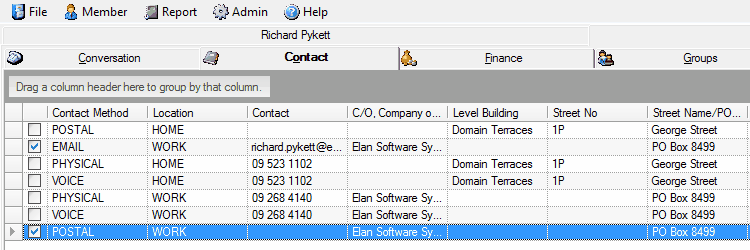
Similarly to sending an email, you can trigger this either from the client Contact Screen by double clicking on a Postal Address, or if you don't have a postal address for the client (here comes the boiling oil again...) you can click on the File Menu and choose Document.
Both methods Journal the created document.
 Client has a Postal Address
| 1. | Start by double clicking on the Postal Address you wish to use |
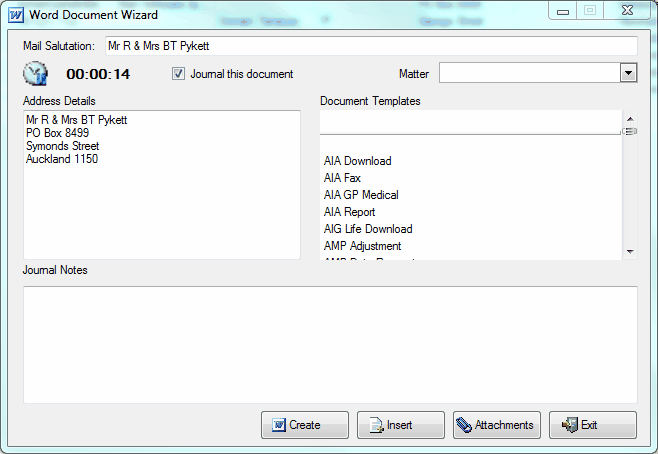
| 2. | The Word Document Wizard opens |
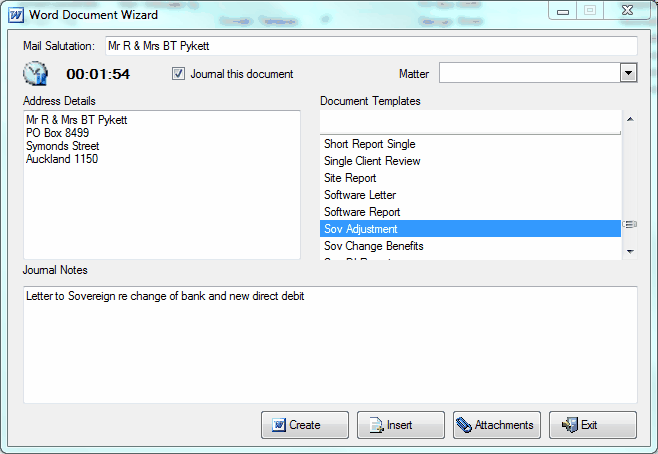
| 3. | Choose the document template you wish to use. In this case we are using the template Sov Adjustment |
| 4. | Write your Journal notes so you will recognise the document later on in the Journal (a few words, not an essay...) |
 more more
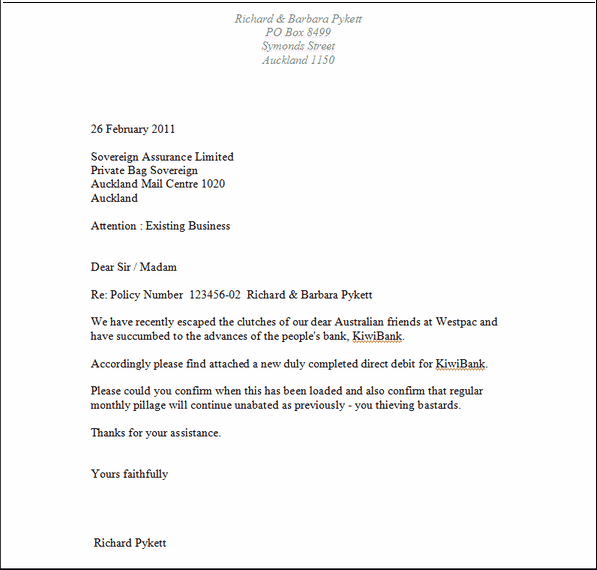
| 6. | Word will open and the merge fields will populate from the client file |
| 7. | Complete the document in the normal way |
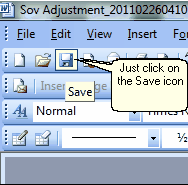
| 8. | Now the only tricky bit - Save the document by clicking on the Save Icon in Word. Don't go File/Save as. |
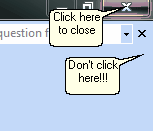
| 9. | Ok, there is another tricky bit - close Word completely by using the X in the top RH corner. Issue here on older versions of Word where you could close the document and leave Word running in the background. |
|
No Postal Address
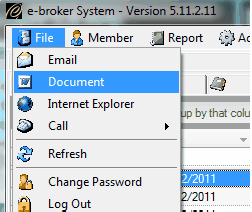
| 1. | If the client for some reason does not have a postal address loaded (and you have either recovered from being boiled in oil, or have yet to be subjected to this...) click on the File Menu and select Document |
| 2. | The Word Document Wizard opens |
| 3. | Choose the document template you wish to use |
| 4. | Write your Journal notes so you will recognise the document later on in the Journal (a few words, not an essay...) |
| 5. | Type in the address you wish to use. (Better to go and sort the client's postal address before you start this whole process) |
| 7. | Word will open and the merge fields will populate from the client file |
| 8. | Complete the document in the normal way |
| 9. | Now the only tricky bit - Save the document by clicking on the Save Icon in Word. Don't go File/Save as. |
| 10. | Other tricky bit - close Word completely by using the X in the top RH corner. Issue here on older versions of Word where you could close the document and leave Word running in the background. |
|
See Also: Word Templates, Policy or Proposal Letter

